Friday, April 10, 2020

How To Trade In Binomo In The Most Simple Way For Beginners

After getting used to trading in Binomo, you need to find yourself a trading strategy that can really make a profit. In today’s article, I will show you how to trade in Binomo extremely easily but highly effectively which is very suitable for newcomers. Let’s go through the article to get what you can apply to Binomo.

Tutorial video on how to trade in Binomo in the most simple way

Register a Binomo account NowGet $1,000 Free for beginners

How to trade in Binomo in the most simple way for newbies

The trading strategy basis

The tutorial on how to trade in Binomo that I introduce today is based on the most powerful indicator in trading. It is the Support/Resistance indicator. This is considered an indicator that brings the highest probability of accuracy in transactions. Support and resistance levels are used by many veteran traders to make a profit. Let’s find out more carefully about this indicator.

The support level in trading

The Support level in the price chart is the line at which the falling price touches, and tends to rebound. Thus, when the price touches the support, we may consider opening an UP option.

The support level in Binomo

The resistance level in trading

In contrast to the Support, we have the Resistance level. It is the zone at which the increasing price touches and tends to fall back. From here, when the price hits the resistance, we can consider opening a DOWN option.

The resistance level in Binomo

How to set up the indicator in Binomo

To set up the Support and Resistance indicators for this trading strategy in Binomo, you should do as follows. After the price creating a peak, draw a horizontal line using that peak. We have the resistance line of the price. Same for the support, pick the trough of the price and draw a horizontal line.

In order to draw Support and Resistance in Binomo, you need to do the following.

• Choose the “Indicators” menu.

• Select “Tools”.

Setting up Resistance and Support in Binomo

Then, scroll down

• Select “Horizontal”.

Setting up Resistance and Support levels in Binomo

A window appears. Here you can choose the color as well as the style of lines to draw.

• Click “Apply”

Choose color and style for lines

You then put these lines one after another into the peaks and troughs just created by the price.

Finally, click on “STOP DRAWING” to finish your drawing.

Setting up Resistance and Support zones in Binomo

How to trade in Binomo with Support and Resistance

After drawing your own Support/Resistance lines on the price chart, there are two other things that you need to focus on observing. They are adjusting your investments and setting the time to open options once the signals appear.

The entry signal appears once the price touches these lines and the candle closes in these respective zones.

For example,

• The price rises and touches the resistance line + a candle is created at this line = open a DOWN option.

• The price decreases and touches the support line + a candle is created at this line = open an UP option.

Trading using resistance and support levels

For the expiration time, you can set by combining 2 or 3 candles periods. For example, With 1-minute candles, your expiration time will be 2 or 3 minutes. Regarding 5-minute candles, the expiration time will be 10 or 15 minutes.

Sum up

Statistics show that this is a trading strategy with a very high win rate. The entry signals are easy to observe by beginners. Practice with this strategy today on the demo account so you can master it. Be patient even with the most simple trading strategy. Then you will make great progress after these first steps. Sincerely goodbye and see you again in the next articles.

Register a Binomo account NowGet $1,000 Free for beginners

The post How To Trade In Binomo In The Most Simple Way For Beginners appeared first on How To Trade Blog.


source https://howtotradeblog.com/how-to-trade-in-binomo/

Thursday, April 9, 2020

How to Deposit Olymp Trade With Online Banking

This can be considered as the fastest and simple way to deposit money into Olymp Trade. You only need to open one online banking account at a local bank that is affiliated with Olymp Trade. Then you can add funds and make money at Olymp Trade in the blink of an eye.

In this article, How to trade Blog will guide you the most detail on how to deposit money to Olymp Trade with online banking. At the same time, you should remember a few extremely important notes to avoid unnecessary recharge errors.

Register an Olymp Trade account NowGet $10,000 Free for beginners

Video clip of how to deposit money into Olymp Trade using online banking account

How to top up Olymp Trade via Online Banking step by step

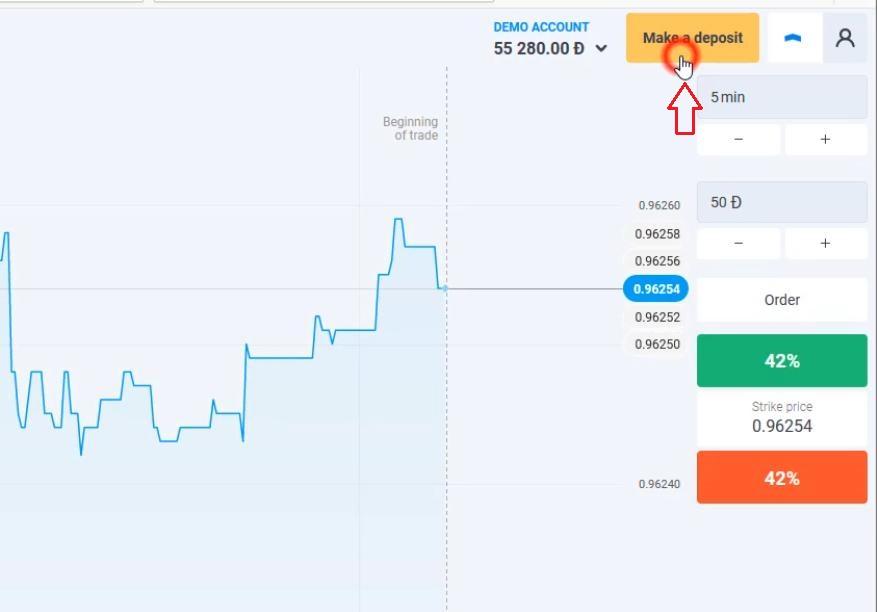
Click “Make a Deposit” on Olymp Trade interface

How to deposit money into Olymp Trade

Choose a deposit method on Olymp Trade

Select the bank logo on which you have opened your Online Banking account.

Choose a deposit method to your Olymp Trade account

Choose the amount you want to deposit into Olymp Trade

Enter the amount you want to deposit into Olymp Trade account

Log in your Online Banking account

Log in your Online Banking account

It will take some time for Olymp Trade to connect to the payment gateway. You should be patient at this time.

Enter the OTP code

After logging, the bank will send to your phone number an OTP code to confirm the transaction.

Enter your bank’s OTP

Money will be deducted from your bank account. And it will notify that you have successfully deposited to Olymp Trade.

Deposit money to Olymp Trade successfully

Check the amount of money in your Olymp Trade account

Check the money transaction history in Olymp Trade

You can access the history of money transactions in Olymp Trade to check your Olymp Trade amount.

Check money in Olymp Trade account

Notes to avoid errors on Olymp Trade money into Olymp Trade using Internet Banking

1. Remember this is an Online Banking account, not a Mobile Banking account. You should not confuse these two.

2. If you cannot top up on your phone, try changing your browser or use your Laptop/PC to deposit on the Website.

3. The time to connect to the bank payment gateway is about 1 minute. Please wait patiently.

4. The balance in your bank account must be greater than the amount you wish to deposit.

5. No need to convert money into USD. Olymp Trade will do it for yourself with a certain exchange rate.

6. After completing the deposit transaction, your Olymp Trade Live account will quickly have funds to trade. No later than 1 hour, the money will be transferred to the account.

7. Contact Olymp Trade Support for quick solutions if there are any problems during the deposit process.

If you have any further questions, please leave a comment below.

Register an Olymp Trade account NowGet $10,000 Free for beginners

The post How to Deposit Olymp Trade With Online Banking appeared first on How To Trade Blog.


source https://howtotradeblog.com/deposit-olymp-trade-online-banking/

Wednesday, April 8, 2020

How To Download IQ Option App On Smartphones (Android & IOS)

If you are busy moving to many places but still want to make money via IQ Option, then installing IQ Option app on your smartphone is the best way for you. With a smartphone and 4G network, you can freely trade anywhere. This article will guide you on how to install IQ Option on Android operating systems (you can do the same for iOS on the App Store).

If you do not have an IQ Option account, you can click on the box below to register.

Register an IQ Option account NowGet $10,000 Free for beginners

How to install IQ Option app on smartphones with 2 simple steps

Go to Google Play or App Store

Firstly, you need to go into CH Play of the Android operating system. Or App Store with iOs.

Access to the CH Play using the Android operating system

Type keyword IQ Option to search for the app

Search for IQ Option app

Install the application

Click the install button after finding the correct IQ Option application.

Install IQ Option application

Wait a few minutes to download it. When the download is complete, you can open the application immediately.

Open IQ Option when the install is completed

Click on the login box to access your IQ Option account with your smartphone.

Login IQ Option app via smarphones
Login IQ Option via smarphones

Enter your email and password to log into your IQ Option account

Enter your account information and password to login IQ Option

After that, you can trade IQ Option on your mobile phone when you can’t sit in front of the computer.

IQ Option interface on the smartphone

If you don’t know how to trade on smartphones, check our next article How to trade in IQ Option with smartphones (updated 04/2020).

Register an IQ Option account NowGet $10,000 Free for beginners

The post How To Download IQ Option App On Smartphones (Android & IOS) appeared first on How To Trade Blog.


source https://howtotradeblog.com/iq-option-app/

How To Trade In IQ Option With Smartphones (updated 04/2020)

Trading in IQ Option using mobile phones (smartphones) is the optimal solution for those whose work is filled with traveling and cannot use the computer frequently. This article will show you how to trade in IQ Option using smartphones for beginners.

If you do not have an account, you can register immediately below.

Register an IQ Option account NowGet $10,000 Free for beginners

How to trade in IQ Option with smartphones for beginners

First, you need to log into your IQ Option account on your smartphone. If you have not installed the IQ Option application, you can refer to the article How to download and install the IQ Option application on your phone.

IQ Option interface on smartphones - How to trade in IQ Option
IQ Option interface on smartphones

Choose the currency pair for trading

(1) Click the “+” icon in the left corner of the screen.

(2) Choose the trading method as “number” and continue to choose the currency pair you want to trade.

Notes: When you trade on the phone, they are not binary but digital options.
With digital options, at the end of the expiration time, if the price is equal to the initial price when you open the option, you will lose.

Select the trading assets in IQ Option using your phone

Select the price chart

To choose a Japanese candlestick chart with a candle time period of 5 minutes, you should do as follows:

(1) Click on the 4th box from left to right on the screen bar.

(2) Choose the candle time period of 5 minutes.

(3) Choose the price chart of the Japanese candlestick type.

Select the price chart type and candle time period in IQ Option on the phone

Set up indicators

How to set up IQ Option indicators on the phone.

(1) Click on the icon of a drawing compass in the third box from the left.

(2) The “Indicators” tab appears. Then, you can choose the desired indicator to support your trading strategy.

Set up technical analysis indicators in IQ Option on your phone

Familiarize yourself with the interface before trading on the smartphone

Practice trading on a Demo account to sharpen your option opening skills. When trading with real money, even a small mistake can turn the tide from winning to losing.

(1) The expiration time.

(2) The amount invested for 1 order.

(3) The profit calculated by the “Profit 81%” method at that time (Your profit will be 81% of the invested amount if you win).

(4) “HIGHER” order.

(5) “LOWER” order.

Familiarize yourself with the IQ Option interface on your phone

How to make money on smartphones in a simple way

Because the IQ Option interface on smartphones is somewhat smaller on computers. To overcome that issue, we use the Out bands trading strategy for easier in observing prices and choosing good entry points on the phone.

How to trade in IQ Option using the Out Bands candlestick strategy

Open a LOWER order when the candle goes over the upper band.

Open a HIGHER order when the candle drops below the lower band.

Capital management

Use the Martingale capital management method to minimize the risk. A cycle consists of 3 orders. If the previous order loses, the next one will be opened with an increased investment amount. If 1 of the 3 orders win, then recall to the initial investment amount.

For example,

A cycle of 3 orders: Order 1 with $10, order 2 with 15$ and order 3 with 25$.

Notes: Order 3 is just for recovering the losses, so we should not increase the investment anymore because of the high risk.

Martingale capital management method

How to open orders with Out Bands strategy

When the price closes and creates a candle over the upper band, open a “LOWER” order. With this trading method, you should choose the sideway market where the price is less volatile. The USD/JPY pair can fulfill that condition.

Open orders using the Out Bands candlestick strategy

At the end of the expiration time, the candlestick has reverted into the band which gives a profit of $7.8.

A winning transaction in IQ Option on smartphones

You can review the results at the end of the transaction.

IQ Option trading results on smartphones - How to trade in IQ Option
IQ Option trading results on smartphones

Be careful when trading IQ Option on a smartphone, because errors can occur when the touch is too sensitive. Please practice fluently on a demo account before trading with real money. This is very good support from IQ Option so that traders can trade without sitting in front of a laptop or PC screen. You just a smartphone and 4G network to start earning money at any time.

Register an IQ Option account NowGet $10,000 Free for beginners

The post How To Trade In IQ Option With Smartphones (updated 04/2020) appeared first on How To Trade Blog.


source https://howtotradeblog.com/how-to-trade-in-iq-option-app/

Tuesday, April 7, 2020

How To Use IQ Option Trading Interface (updated 04/2020)

Before making money in IQ Option, you should learn how to use and get acquainted with the interface for easier observing. In order to have quality transactions, there must be reasonable entry points. And to support the observation of entry points, the interface also plays a very important role in monitoring price movements. In this article, I will guide you on how to customize the IQ Option interface in most detail.

Register an IQ Option account NowGet $10,000 Free for beginners

How to use your IQ Option trading interface

Chart type

The exchange rate of the underlying assets is shown in the chart. Including 4 types as follows:

– Line: The line chart.

– Candles: The Japanese candlestick chart.

– Bars: The bar chart.

– Heiken Ashi: The Heiken Ashi candlestick chart.

Chart types in IQ Option

The most commonly used by traders around the world is the Japanese candlestick chart.

Japanese candlestick chart in IQ Option

Candle Time Period

There are many time periods. The shortest one is 15s and the longest one is 1 month. You can adjust each candle time period equal to your expiration time for easier trading.

For example, If your expiration time is 5 minutes, then you can customize the candle time to 5 minutes also.

Japanese candlestick chart with a 5-minute candle time period

Notes: The line chart represents the current price and cannot be adjusted.

Graphical Tools

When you need to mark an important price or an ongoing trend, you should choose to draw a line. There are 5 types as follows:

– Line

– Trend Line

– Horizontal Line

– Vertical line

– Fibonacci Line

Graphical tools for drawing important price lines in IQ Option

Below is the interface after drawing the trend line and using the horizontal line for marking the levels.

Drawing trend line and levels

Indicators

These indicators are used for forecasting asset price movements. There are many different types. You can choose which indicator is suitable for your trading strategy.

Here I choose the Bollinger Bands to support the Out bands trading strategy.

Select Bollinger Bands indicator in IQ Option

Then the Bollinger Bands indicator menu will appear for traders to edit if necessary. Then, click “Apply” to finish.

Set up Bollinger Bands indicator

This is a 5-minute Japanese candlestick chart combined with the Bollinger Bands indicator

Japanese candlestick chart works with Bollinger Bands indicator

Customize the expiration time

The expiration time in IQ Option varies from 30 seconds to 1 minute or 1 month. In options trading, the majority of traders usually choose an expiration time of 24 hours or less. Click on the available default expiration time. Or you can customize the time using the “+” or “-” buttons as needed.

Expiration time in IQ Option

Amount of money invested in each transaction

You can manually adjust the amount of money to place a reasonable amount for each transaction as per your balance. To add or subtract the amount, press “+” or “-“.

The amount of money for each transaction

Predict the price trend within the expiration time

Finally, it is to predict the price trend within the expiration time. If you think that the price will go up, click “HIGHER”.

The price is predicted to increase in IQ Option

Otherwise, if you think that the price will continue to decrease shortly, click “LOWER”.

The price is predicted to decrease in the near future

Conclusion

We’ve shown you all the basic adjustments on the interface of IQ Option above. You can practice and experience on a DEMO account by clicking the box below to register.

Register an IQ Option account NowGet $10,000 Free for beginners

The post How To Use IQ Option Trading Interface (updated 04/2020) appeared first on How To Trade Blog.


source https://howtotradeblog.com/how-to-use-iq-option-interface/

Monday, April 6, 2020

How To Use Binomo Trading Interface (Updated 04/2020)

To be able to trade smoothly as well as make the most of the services that a platform provides, understanding and mastering the components on the interface of the platform is something you definitely need to do. In today’s article, I will introduce you to the available components on the interface of the Binomo trading platform.

This is a trading platform with a simple interface and easy-to-use distribution layout. Binomo is considered by many traders to be one of the best trading platforms at the moment.

Register a Binomo account NowGet $1,000 Free for beginners

How To Use Binomo Trading Interface (Updated 04/2020)

In general, Binomo provides us with a much simpler interface than other platforms. The background color is black gray and it is the only color (you can not customize it). Numbers and letters are clearly and visually displayed.

Besides, the colors on the interface are also very harmonious and do not disturb the traders’ eyes. Those are general comments. Now, we will go into detail on the components of Binomo’s interface.

The area at the top right of the interface

The area at the top right of the interface - How to use Binomo interface
The area at the top right of the interface

Observing the red circled area in the image, from left to right, in turn, there are the following functions:

– The rotating circle icon: refunding on a demo account

– The downwards arrow: switching between a demo account and a real account.

– Yellow box for “Deposit”: depositing real money into your account

– Box with letters: your account information

The area to the right of the interface

The area to the right of the interface - How to use Binomo interface
The area to the right of the interface

Including the following function bars:

1) The bars for adjusting the time and amount for each transaction.

2) The income of the transaction and the majority option.

3) The buttons for opening options: UP (green) and DOWN (red).

The area in the upper left of the interface

The area in the upper left of the interface

Here we have the “+” bar used for choosing available asset pairs for trading. Besides, there is a notification bar of the asset pairs you have chosen for trading. Please note that within an interface, you can select multiple asset pairs for trading and can easily switch back and forth.

The notification area

The notification area - How to use Binomo interface
The notification area

This area of the Binomo platform gives us the following parameters:

– Total investment.

– Expected income.

– Time remaining.

The area to the left of the interface

The area to the left of the interface

From top to bottom, there are the following function bars:

(1) Reviewing transaction history.

(2) Viewing the economic calendar of the day.

(3) Contests organized by the platform.

(4) Promotion codes and offers.

(5) Indicators and graphical tools for the graph.

The lower left corner area of the Binomo interface

The lower left corner area of the interface

This is an area with the following functions:

The red circle box: contacting the platform support.

The right is where the real-time display.

The upper circle box: setting up the price chart type.

The lower circle box: Selecting the time period for the price chart.

The adjustment bars of the price chart

The adjustment bars of the price chart

In the middle and downward of the interface are the “+” and “-” buttons that used for zooming the price chart in and out.

The other display components

The other display components

(1) The price bar: depending on the type of price chart, this bar may have different shapes (Japanese candlestick, bars, kinked lines, etc.)

(2) The bar showing the time left to enter a trade. This bar is more intuitive in displaying than your available last entry point.

Above are the components of the interface of the Binomo trading platform that I introduced to you. To better understand it, you can check out the short following video made by us.

Comments on the interface of Binomo

Advantages

Simple and intuitive interface. The details are simple and do not distract traders. It basically had all the necessary functions for an options trading platform.

Disadvantages

The background color is black gray and cannot be changed. Psychologically, this strong color will stimulate traders to lose control more easily and greatly affect psychology during trading. In addition, interface customization is quite limited. It is difficult to adjust to fit the personality of each trader. This is also a major weakness of Binomo compared to other platforms.

Our shared article on the Binomo interface would like to pause here. Hopefully, this is a great amount of knowledge for you all. For newcomers to this market, Binomo is a suitable trading platform for you to get started with options.

Leave your comments and questions in the comment section below. We will answer for you right away.

Register a Binomo account NowGet $1,000 Free for beginners

The post How To Use Binomo Trading Interface (Updated 04/2020) appeared first on How To Trade Blog.


source https://howtotradeblog.com/how-to-use-binomo-interface/